

Published 25 April 2026. Updated 25 October 2026.
Case Study Summary
- Client: Jason, managed IT services company in Sydney.
- Device: Dell server running VMware ESXi with 8 × Dell ST300MM008 SAS 300GB enterprise hard drives in a hardware RAID.
- Problem: Server failed with an error. Their IT support company couldn’t recover the missing snapshot or locate the data store. Critical business folders sat inside virtual machines on the VMFS volume.
- Solution: Detected and tested all 8 drives on Atola Insight Forensic with SAS add-on. Cloning failed on Atola so the lab switched to PC-3000 SAS, which cloned every drive cleanly in roughly 45 minutes each. UFS Explorer auto-rebuilt the RAID from the 8 image files, exposed the VMFS volume, and the VMDK virtual machine files were mounted and verified.
- Outcome: Full VMware ESXi data recovery delivered, including the critical business folders Jason needed. Total turnaround: 12 hours.
- Service Page: RAID and Server Data Recovery
VMware ESXi Data Recovery: A Failed Dell Server from a Sydney MSP Lands at the Rhodes, NSW Lab
Jason runs a managed IT services company in Sydney. One of his customers had a Dell server running VMware ESXi fail with an error. Their existing IT support company tried to bring it back, couldn’t recover the missing snapshot, and couldn’t locate the data store at all. Several critical business folders sat trapped inside virtual machines that weren’t mounting any more. The 8 drives travelled to Payam Data Recovery’s lab in Rhodes, New South Wales, where owner Payam Toloo took the case on. This VMware ESXi data recovery case study walks through the SAS imaging challenge, the surprise clone failure on one professional tool that succeeded on another, the RAID rebuild from image files, and the VMFS-and-VMDK extraction inside 12 hours. If you’re looking for the matching service, see our RAID and server data recovery service.
The Problem: 8 SAS Drives, a Failed ESXi Host, and a Lost Data Store
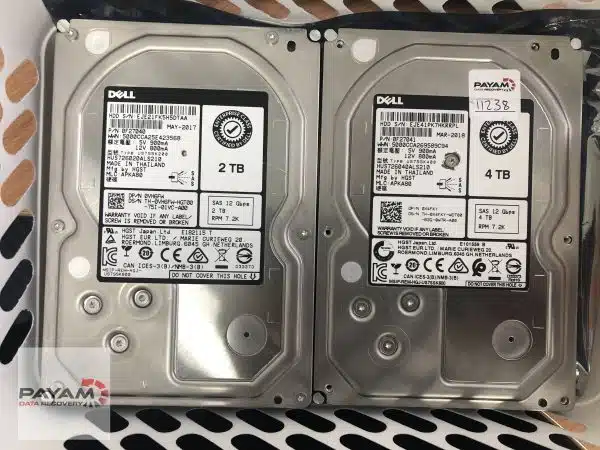
The drives in front of us were 8 × Dell ST300MM008 SAS 300GB enterprise hard drives. SAS (Serial Attached SCSI) is the interface enterprise servers use for the data and boot drives that have to deliver consistent performance under sustained load. Visually, SAS drives look almost identical to consumer SATA drives, but the connector is different: SATA has a small gap between the data and power sections of the connector, SAS has no gap. That difference matters because consumer hardware imagers built for SATA can’t read SAS drives at all, even when the drive is physically plugged in. VMware ESXi data recovery from an enterprise Dell server depends on having SAS-compatible imaging hardware before any other step is possible.
The starting plan was the standard one. Connect the drives one at a time to Atola Insight Forensic with its optional SAS add-on, confirm detection, check SMART, run a media scan to verify every sector is readable, then sector-clone each drive onto stable media so all subsequent recovery work happens on copies. All 8 drives detected. SMART status was clean across the set. Media scans showed every sector readable. So far, this was looking like a straightforward VMware ESXi data recovery job.
Then the first clone attempt fell apart. Within minutes of starting the sector-by-sector copy on the Atola, every sector started returning unreadable. Not a few weak sectors at the end of the drive, not a slow patch in one zone, but the entire drive going opaque to the cloning process. The drive sounded perfectly healthy on the bench. SMART status was still clean. The diagnostic data and the cloning behaviour were saying contradictory things.
A second attempt with the same drive on the same tool produced the same result. Every sector unreadable. There’s no obvious explanation in the data for why a drive that detects clean, scans clean, and sounds healthy would refuse to clone, but VMware ESXi data recovery on enterprise SAS hardware is full of edge cases like this and it’s the reason the lab keeps multiple imaging platforms on hand.
The VMware ESXi Data Recovery Process
Step one of the VMware ESXi data recovery had to pivot. The Atola wasn’t going to image these drives. The lab switched to PC-3000 SAS, the SAS and SCSI variant of the PC-3000 platform. PC-3000 SAS is purpose-built for enterprise SAS drive recovery and uses a different read-strategy stack than the Atola. It’s also expensive and rarely needed, which is why most labs don’t have it.
The first drive cloned cleanly on PC-3000 SAS in approximately 45 minutes. Image file written to a 4TB target drive. The second drive, same. Each drive in the 8-drive set imaged successfully on PC-3000 SAS at the same pace. Why did one tool fail and the other succeed on the same hardware? There’s no definitive answer. Different imaging tools handle SAS vendor commands and read-error retry logic differently, and a drive that hits a corner case in one tool’s logic can be entirely cooperative with another. The reason the lab carries multiple platforms isn’t redundancy for its own sake, it’s because there’s no single tool that handles every drive.
Step two of the VMware ESXi data recovery was the RAID rebuild. All 8 image files were opened in UFS Explorer Professional Recovery. RAID rebuild software typically expects to work with physical drives, not image files, and most tools won’t auto-detect the array geometry from images. UFS Explorer is the exception: it scanned the 8 image files, identified the RAID parameters automatically, and rebuilt the storage volume.
Step three was reading what was inside. The rebuilt RAID exposed multiple volumes. The second volume showed a healthy VMFS file system, which is VMware’s proprietary file system for ESXi data stores. UFS Explorer can read VMFS directly, which is the second non-obvious capability the job depended on (Windows can’t read VMFS natively, and most general-purpose recovery tools can’t either). Inside the VMFS volume sat large VMDK virtual machine disk files: the actual virtual servers Jason’s customer had been running on the ESXi host.
The lab mounted one of the VMDK files to check the data inside. No corruption, no missing folder structure, no broken file system inside the virtual disk. Each VMDK was then copied off, file-by-file, to a fresh external drive. The critical business folders Jason needed for his customer were among the first content extracted, exactly as they’d been sitting on the live VMs before the host failure.
VMware ESXi Data Recovery Results
Total elapsed time from the moment the drives arrived at the lab in Rhodes, NSW to the moment Jason had a usable copy of the data: 12 hours. Every VMDK on the VMFS volume came off cleanly. Every critical business folder was present and verified. The VMware ESXi data recovery delivered exactly what an MSP customer needs from a case like this: not a probable recovery, not a partial recovery, but the actual virtual machine files in a form that can be remounted on a working ESXi host or read directly with VMware’s standard tools.
Total drives processed: 8. Total recovery turnaround: 12 hours. Cloning step alone: roughly 6 hours of imaging time across 8 drives plus the diagnostic work either side of it.
Why Professional VMware ESXi Data Recovery Matters
Four things make a case like this difficult, and most general-purpose IT shops and smaller data recovery operations will hit a wall at one of them.
First, SAS hardware. Reading enterprise SAS drives without the original RAID controller and without the original Dell server requires SAS-capable imaging hardware. The cheap option (a USB SAS dock) won’t deliver the read-error handling needed for an unstable drive, and the standard SATA imagers most recovery shops own are simply not compatible. VMware ESXi data recovery on a Dell server starts with owning SAS hardware that can read drives end of life.
Second, advanced cloning tools. Even with SAS-compatible hardware, an individual drive can refuse to clone on one tool and clone perfectly on another, exactly as happened here with the Atola-to-PC-3000-SAS pivot. A lab with only one SAS imager would have stopped at the first failed clone attempt. VMware ESXi data recovery on production hardware needs at least two professional-grade imaging platforms in the room.
Third, RAID rebuild from image files. Most RAID rebuild software won’t work with image files at all, only with physical drives. The few tools that do (UFS Explorer chief among them) are also the few that handle non-standard parity rotations, unusual stripe sizes, and the half-dozen Dell-specific PERC controller layouts that production servers actually run. Without a tool that handles image-file rebuilds, you have to rebuild on the original drives, which is risky if any of them is unstable.
Fourth, VMFS file system access. Once the RAID is rebuilt, the file system on top is VMFS, not NTFS or ext4. Windows can’t read VMFS natively. Linux can read it with effort but not in a recovery-friendly way. UFS Explorer reads VMFS directly and exposes the VMDK files inside. Without that capability, even a successful RAID rebuild leaves you staring at an opaque block device.
Each of those four steps is non-trivial on its own. Stacked together in a single VMware ESXi data recovery job, they explain why most managed IT services companies escalate this kind of failure rather than attempt it in-house.
For background on how VMware ESXi and VMFS work together, the Wikipedia article on VMware ESXi covers the hypervisor architecture and data store model. For more on the SAS interface and how it differs from SATA, the Wikipedia article on Serial Attached SCSI explains the protocol and connector differences that matter for VMware ESXi data recovery from enterprise hardware.
Why People Choose Payam Data Recovery
When a RAID, NAS or server fails, the array has to be rebuilt correctly the first time, without putting the original drives at further risk. That is the work we do every day.
- We are a specialist data recovery lab, not an IT support company. We have been recovering data since 1998, from over 300,000 devices.
- Over 2,000 IT companies and computer shops across Australia send us their customers’ complex cases, and data recovery labs and IT companies in more than 50 countries have sent us their difficult cases over the past ten years.
- Every drive is tested and cloned first on professional tools such as Atola Insight Forensic, the PC-3000 and the DeepSpar Disk Imager, and the RAID is rebuilt from the clones. A drive that needs a head swap is opened in our ISO 5 certified laminar flow cabinet, with over 30,000 donor parts in-house, including around 20,000 donor hard drives.
- Emergency service for businesses. Many of our business and IT customers choose it, because every day a server is offline usually costs more than the difference in price. 24/7 emergency service is available as a premium option on 0404 872 926.
- Your data stays private. Our data recovery engineers open only a few random, non-sensitive files to check the recovery worked, and we will sign your NDA on request.
- See your files before you pay. You tell us which files matter most. Before you pay for the recovery, we’ll send you a list of your recovered files so you can check them. If any of the files you listed are missing, tell us and we’ll search again.
- Pay by Visa, Mastercard, American Express, Apple Pay, Google Pay, Link or PayPal, split the cost with Afterpay, Zip, Klarna or PayPal Pay in 4, or pay by bank deposit (EFT).
- Rated 4.9 from over 2,400 Google reviews.
We are not the cheapest. We are the best in Australia at this work. We know what to do, how to do it, and we will do our very best for you. Your best chance of getting your data back is with us.
VMware ESXi Data Recovery Service Tiers
Server and RAID jobs are quoted after a free assessment, because the work depends on the number of drives, the drive interface (SATA vs SAS vs NVMe), the RAID level, the file system on top (NTFS, ReFS, VMFS, ext4, ZFS, etc.), and whether any drives have physical faults. Three VMware ESXi data recovery turnaround tiers are available so customers can pick what fits their situation:
Economy. The right VMware ESXi data recovery choice if you are working to a tight budget. Turnaround is typically 2 to 3 weeks.
Priority. A faster VMware ESXi data recovery path through the lab for jobs where waiting two to three weeks isn’t realistic. Turnaround is typically about 7 days. Pricing is quoted on the free assessment.
Emergency. Round-the-clock VMware ESXi data recovery work for cases where a business is offline or an MSP customer is losing money by the hour. Jason’s 12-hour turnaround on this case ran on the Emergency tier. Pricing is quoted on the free assessment.
Because every step happens in house in Australia, there are no overseas handoffs and no waiting on a third-party lab to schedule your job. The same team that opens the assessment is the team that finishes the recovery, which is the only way to deliver Emergency turnarounds reliably.
Frequently Asked Questions About VMware ESXi Data Recovery
Our VMware ESXi server failed and our IT company couldn’t find the data store. Is the data recoverable?
Usually, yes. Jason’s case is a typical example: the existing IT support company couldn’t locate the data store or recover the missing snapshot through ESXi’s own tools, but the underlying VMFS volume and the VMDK virtual machine files inside it were still completely intact on the SAS drives. Once the RAID was rebuilt from image files and the VMFS volume was exposed, the VMDK files mounted cleanly. VMware ESXi data recovery rarely fails on the data side. It fails on the tools side, when an IT shop doesn’t have what’s needed to read SAS hardware or VMFS file systems.
Why couldn’t standard data recovery tools clone the SAS drives?
SAS drives need imaging hardware that speaks the SAS protocol natively. Standard SATA imagers can’t read them at all, and even SAS-compatible professional tools handle vendor-specific commands and read-retry logic differently. In Jason’s case, the first SAS imager (Atola Insight Forensic with SAS add-on) wouldn’t clone the drives despite all 8 drives detecting and scanning cleanly. The second SAS imager (PC-3000 SAS) cloned every drive in approximately 45 minutes. There’s no single tool that handles every drive, which is why a serious VMware ESXi data recovery lab carries multiple imaging platforms.
Can VMFS data be read on a Windows PC?
Not natively. Windows doesn’t include a driver for VMware’s VMFS file system. Reading VMFS volumes requires specialist tools, of which UFS Explorer is the most capable for VMware ESXi data recovery work. UFS Explorer reads VMFS directly, exposes the VMDK virtual machine files inside, and lets the data recovery engineer mount or extract them as needed.
How long does VMware ESXi data recovery take?
Jason’s 8-drive Dell SAS case closed in 12 hours end to end on the Emergency tier. Standard turnarounds are typically 2 to 3 weeks for Economy and about 7 days for Priority. Imaging time scales with drive count and capacity: at roughly 45 minutes per drive on PC-3000 SAS, an 8-drive set images in about 6 hours, plus diagnostic and rebuild time on either side.
I am working to a tight budget. Can you still help with a VMware ESXi server recovery?
Yes. The Economy tier is built for exactly that situation. The price depends on complexity. We offer a free assessment and a free written quote. The quote explains the cost, the attempt fee, your chances of success and the time involved, for your approval before we start. Server RAID recovery like this carries a non-refundable attempt fee, which is part of the total quoted price, not an extra on top. You pay it to begin, and the balance only if we recover your data. Current prices are on our RAID and NAS data recovery page. If the timeline isn’t critical, Economy gets your data back at the lowest cost we offer.
My business is offline and I need this back today. Can you do that?
That’s what the Emergency tier is for. Our team works 24/7 on Emergency cases, including overnight and weekend hours. Turnaround is 1 to 2 days on average, with no guarantee. Jason’s 8-drive Dell SAS VMware ESXi case closed in 12 hours. Because we never outsource any part of the work, there is no waiting on a third-party lab to fit your job in.
We’re a managed IT services company. Can we send you customer cases?
Yes. A meaningful share of our caseload comes from MSPs and other IT service providers who hit the limits of their own tools or workflow. We work alongside your team rather than replacing them: you handle the customer relationship, we handle the recovery and report back to you. Jason’s case in this article is exactly that kind of partnership.
I’m not based in Australia. How does shipping and customs work?
Start with our free quote form so you can see whether the indicative pricing fits your budget. If it does, fill out the submit-a-job form to receive a job number and delivery instructions, then ship the drives in via a trusted international courier (FedEx, DHL, or UPS work well). On the customs declaration, the items should be declared as faulty hardware for repair with a very low declared value. The drives aren’t being sold or bought, they are faulty for repair, so a low value is accurate and avoids unjustified customs duties or import taxes. We organise return shipping at the end of the job, and your recovered data comes back on an external drive. If you need a few files urgently before then, we can upload a small amount to a Google Drive folder we provide, or to a folder you share with us. The easiest way for an international customer to reach us is by email at help@payam.com.au, which works in every time zone.
What should I do right now if my VMware ESXi server has failed?
Power the server down. Don’t run any rebuild from the RAID controller, don’t attempt to remount the data store from ESXi, and don’t replace any drive into the original bay. Restart loops on a degraded array can drive a marginal SAS drive past the point of being cloneable. Label each drive with its bay number, place them in anti-static bags, and ship them or drop them at a Payam lab. Bay order matters when the array is rebuilt later.
About Payam Data Recovery
Payam Data Recovery is an Australian company, in business since 1998, with more than 300,000 devices recovered to date including hundreds of VMware ESXi data recovery jobs and other virtualisation-host failures. Every recovery happens in our own labs in Sydney, Rhodes NSW (where Jason’s case was handled), Melbourne and Brisbane, with secure drop-off offices in Adelaide and Perth, which send your device to our lab in Rhodes, NSW at no cost. Our equipment includes Ace Lab PC-3000 (with both SATA and SAS variants), DeepSpar Disk Imager, Atola Insight Forensic with optional SAS add-on, and UFS Explorer Professional Recovery for RAID rebuild and VMFS extraction, plus an ISO 5 certified laminar flow cabinet for any physical drive work. Nothing is ever outsourced. The team that opens the assessment is the same team that finishes the recovery, start to finish, which is what makes Emergency turnarounds possible. We regularly take international cases and MSP-referred cases from managed IT service providers, IT managers, and other data recovery companies from around the world. Visit our homepage or read more about our RAID and server data recovery service.
Request a Free VMware ESXi Data Recovery Assessment
Failed VMware ESXi server, missing data store, lost snapshot, Dell or HPE SAS RAID that won’t rebuild, or VMFS volume that nothing on Windows can read? Our VMware ESXi data recovery team can help.
On a tight budget? Ask about our Economy VMware ESXi data recovery service, with the full quote confirmed after a free assessment.
Need it back fast? Priority and Emergency VMware ESXi data recovery tiers are built for urgent cases. Because every step is done in house by our own Australian team, there is no waiting on a third-party lab and no overseas handoffs slowing things down. Emergency jobs run 24/7 for the fastest turnaround humanly possible.
We cover: All major server brands including Dell PowerEdge, HPE ProLiant, Lenovo ThinkSystem, Supermicro, IBM/Lenovo System x. All RAID levels (0, 1, 5, 6, 10, 0+1, 50, 60). All hypervisors (VMware ESXi, Hyper-V, Proxmox, XenServer). All file systems (NTFS, ReFS, VMFS, ext4, XFS, ZFS). SATA, SAS, and NVMe drive interfaces.
Australian VMware ESXi data recovery, international clients welcome. Managed IT service providers, IT managers, and other data recovery companies from around the world send us cases regularly. Start with a free quote, then ship in via FedEx, DHL, or UPS once the indicative price works for you. We can return the drives anywhere in the world.
RAID and Server Recovery Service
Get a Free Quote
Or submit a new job online once you have an indicative quote.
Phone: 1300 444 800 | Email: help@payam.com.au
Related RAID and Server Recovery Case Studies
- 16-drive enterprise RAID recovery case study
- QNAP server RAID 6 data recovery case study
- RAID 5 dual drive failure recovery in Sydney
- QNAP NAS RAID 6 drive clone case study
- RAID 0 office server data recovery case study
- Lenovo server RAID 5 data recovery case study
- Lenovo ST650 RAID 5 with 8 SAS drives and two failed
Video Transcript (click to expand)
Hi, it’s Mike, and today I’m visiting Payam Data Recovery’s lab in Rhodes, New South Wales, to go behind the scenes on an urgent RAID recovery case. I’m meeting with owner Payam Toloo, who’s working on a critical VMware server for Jason from a managed IT services company in Sydney. Their Dell server running VMware ESXi failed with an error. Their IT support company tried to help but couldn’t recover the missing snapshot or locate the data store. Jason needed several critical business folders recovered from the virtual server urgently.
Payam received 8 Dell ST300MM008 SAS 300GB hard drives. He explained that SAS drives need specialised hardware. Unlike SATA drives which have a gap in the connector, SAS drives have no gap. He used his Atola Insight Forensic with the optional SAS add-on unit. All 8 drives detected perfectly. SMART status looked good. Media scans showed all sectors readable.
But when he tried to clone the first drive, it was a complete failure. Every sector became unreadable. He tried again with the same result. The drive sounded healthy but wouldn’t clone. Payam switched to his PC-3000 SAS, a very expensive, rarely used version of the PC-3000 tools designed specifically for SAS and SCSI drives. Success. Each drive cloned perfectly in about 45 minutes to image files on a 4TB hard drive. Why did it work here and not on the Atola? Payam wasn’t sure, but explained that’s why they have different tools and methods.
Now for the next challenge. He opened all 8 image files in UFS Explorer data recovery software. Normally, RAID software won’t auto-detect image files, but UFS Explorer automatically rebuilt the RAID storage volume. The second volume showed a healthy VMFS file system, VMware’s file system format. He opened it and found large VMDK virtual machine files. He mounted one, confirmed the data wasn’t corrupted, and started saving everything to an external hard drive.
This case demonstrates why most IT companies and smaller data recovery companies would struggle here: reading SAS drives without the RAID controller or server, cloning them without specialised hardware like PC-3000 SAS, rebuilding the RAID configuration with tools like UFS Explorer, then accessing a VMFS VMware file system on a Windows PC that doesn’t natively support it. Each step was an obstacle requiring specialised knowledge and equipment. The entire recovery took 12 hours from start to finish. If you’re a managed IT services company dealing with Dell server failures, VMware ESXi issues, or SAS drive RAID problems, Payam Data Recovery has the expertise and tools others simply don’t.


